





License: free
Languages:


Many Joomla! users have faced the need to output articles in a category or section blog layout, especially multi-column, with smaller pictures while retaining their original size inside the article view. It may sometimes also be necessary to include a picture of reduced size accompanied with a link to the full size image in the article view.
SmartResizer plug-in is a universal solution to those needs.
The plug-ing creates two thumbnails for an image inside an article: the first is for inclusion inside the article and the second is for a category or section blog. This makes it possible to create a small thumbnail for a category blog, section blog and front page articles, and a midsize thumbnail for the article view. The plug-in also automatically creates a reference to a full-size image if the picture has the thumbnail inside the article. The plug-in can create a third large thumbnail to open as the fullsize image. Nice feature, if your users upload photos to site directly from the camera with a very large size. There is the possibility of automatically overlaying the watermark on the images of your site. A watermark (your logo, name or URL of your site, etc.) will protect your images from copying, making their copying meaningless.
There are some features of the plugin:
- Crop or Fit image to thumbnail size.
- Auto ajust size of thumbnail, if you set only width or only height of thumbnail.
- Three ways to store thumbnails: in the same folder as original image; in cache folder; in subfolder 'smart_thumbs' of original folder.
- Processing of remote images.
- Three ways to open original image: popup window, Joomla SqweezBox, Highslide effect.
- Watermark image or/and watermark text for original image and for thumbnail.
Supported image formats: JPG, PNG, GIF.
Plugin parameters:
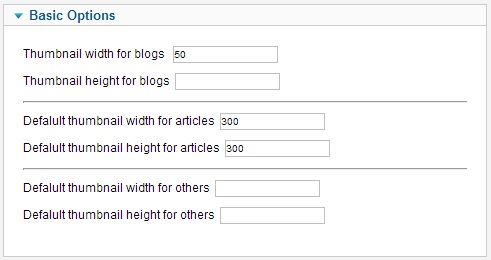 SmartResizer Plugin basic parameters - Setting thumbnail sizes
- Thumbnail width for blogs - thumbnail width for pictures in a category blog, section blog and front page.
- Thumbnail height for blogs - thumbnail height for pictures in a category blog, section blog and front page.
- Default thumbnail width for articles - default thumbnail width for pictures inside articles.
- Default thumbnail height for articles - default thumbnail height for pictures inside articles.
- Default thumbnail width for others - This is the default generated thumbnail width in px for images in other components (not com_content)
- Default thumbnail height for others - This is the default generated thumbnail height in px for images in other components (not com_content)
- Create large thumbnails - to create or not to create a thumbnail, which will open in a window instead of the original image. Nice feature, if your users upload photos to site directly from the camera with a very large size. Plug-in can create a thumbnail to open as the fullsize image.
- Large thumbnail width.
- Large thumbnail height.
Advanced parametres:
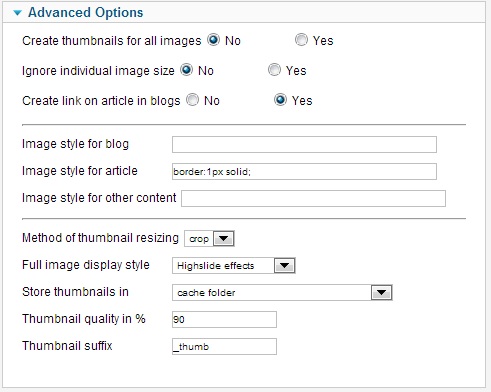 SmartResizer Plugin advanced parameters - Setting thumbnail behavior
- Create thumbnails for all images - If No then create thumbnails for images with 'smartresize' class only, if Yes then create thumbnails for all images except images with 'nosmartresize' class.
- Ignore individual image size - If Yes then ignore individual image size in IMG tag and apply a default thumbnail size for articles and other components except images with 'smartresizeindividual' class.
- Create link to article in blogs - if Yes, then plugin creates a link to the article for the thumbnail.
- Image style for blog - you can set thumbnail decoration in blogs and homepage with this parameter. The value of the parameter is the "style" property value of <img> tag. Example of the parameter value: background-color:#EEEEEE; border:1px solid #999999; padding: 3px;margin-right:5px
- Image style for article - you can set thumbnail decoration in article with this parameter.
- Image style for other content - you can set thumbnail decoration in other component content (not com_content) with this parameter.
- Method of thumbnail resizing - if 'crop', then image will be cropped to thumbnail size. If 'fit', the image will be scaled to the size of the thumbnail, however, if the image proportions are not the same as those of the thumbnail, white margins will be left.
- Full image display style: Pop-up window - full image opens in a pop-up window. Joomla SqweezBox - full image opens in a standard Joomla mootools SqweezBox. Highslide - full image opens with highslide effect.
- Store thumbnail in - the same folder as original image, in cache folder or in subfolder 'smart_thumbs' of original image folder.
- Thumbnail suffix - sets a suffix for the file name of the thumbnail.
- Thumbnail quality in % - Sets the thumbnail image quality.
- Create image caption in articles - if yes, then creates caption above or under the thumbnail in articles. Caption is the text from 'alt' or 'title' tag of image.
- Create image caption in category blogs - if yes, then creates caption for thumbnail in the category blog layout or in the homepage layout.
- Create image caption in other content - if yes, then creates caption for thumbnail in other component content.
- Image caption position - under or above thumbnail.
- Style for image caption box - style for caption (style for <span> tag). Default value is 'line-height:20px; font-size:10px;'
Parameters 1 and 2 set fixed size for the thumbnails to be displayed in category blog, section blog and in the front page. Parameters 3 and 4 set default thumbnail size for the article view. Each image can be assigned its own thumbnail size inside its article by defining properties 'height' and 'width' in IMG tag in the editor. If neither 'height' nor 'width' are given, the thumbnail size will be determined by default parameters 3 and 4.
In order to tell the plug-in which images should have thumbnails, class smartresize must be entered in the Class property of the image in the editor. You should set parameter "Code cleanup on save" of TinyMCE plugin to value "on site" or "never" to prevent automatically deleting "class" image properties. Also need to switch TinyMCE Editor to advanced mode to enable additional tabs of image property window. You can access to image property "Class" on tab "Appearance" of image property window. You can see the example of css class smartresizer in the css file /plugins/content/smartresizer/smartresizer.css. Example of CSS class:
/* for image */
.smartresize {
  margin:3px 10px 10px 0px;
  padding: 5px 5px 5px 5px;
  border:1px solid #CCCCCC;
  background:#EEEEEE;
}
/* for image caption */
.smartresize span {
  margin:7px 3px 0 3px;
}
This code allows to set separate decoration for images in blog layouts instead of images in articles (as demo):
/* for image */
.blog .smartresize {
  margin:3px 10px 10px 0px;
  border:1px solid #CCCCCC;
  background:#EEEEEE;
  padding:0;
}
/* for image caption */
.blog .smartresize span {
  margin:2px 3px 0 3px;
}
You can use plugin parameters "Image style for (blog, article, other content)" described above to set decoration for thumbnails. this is more easy way than declaring .smartresize class in template.css file.
You can use the blogwidth and blogheight commands to set individual sizes for the thumbnail in your blog or homepage layout. You should use these commands in property "style" of IMG tag:
<img class="smartresize" style="blogwidth:200; blogheight:100;" src="/images/stories/image.jpg">
In order for the plug-in to create thumbnail for all pictures, set parameter Create thumbnails for all images to Yes. In this case you do not need to set smartresize class for each image. Also in this case You can use nosmartresize command in Class property of <img> tag to prevent creation thumbnail for the image.
Watermark parameters
The plugin allows you to overlay a watermark on the images of your site. A watermark is a small image - your logo, name or URL of your site, etc. A watermark will protect your images from copying, making their copying meaningless. To adjust the watermark overlay, use the following options:
- Watermark - "Nothing" - no watermark overlay; "Full size images only" - watermark overlay on full size images only; "Full size images and thumbnail" - watermark overlay on full size images and thumbnails.
- Enable for - "All images" - watermark overlay for all images processed by content plugins; "images with class 'watermark' only" - watermark overlay for images with 'watermark' class only.
Section "Watermark image"
- Watermark file - select watermark image file.
- Horiz. position - select horizontal position of watermark.
- Horiz. shift - horizontal indent of watermark from left/right. Leave empty for 'center'.
- Vert. position - select vertical position of watermark.
- Vertical indent - vertical indent of watermark from top/bottom. Leave empty for middle.
- Transparency - "Simple overlay" - watermark will be overlayed with 'transparency' setting. "Transparent background color" - watermark will be overlayed with 'transparency' setting and the background of watermark specified in "Transparent color" option will be transparent.
- Transparent color - Set the (background) color of watermark that should be transparent. For Transparent background color option only.
- Transparency in percent - specify the transparency of the watermark from 0 (completely transparent) to 100 (completely opaque).
Section "Watermark text"
- Watermark text - Specify the text to be overlayed as a watermark on the image.
- Font - Select a font for text output. You can add your own font by saving the .ttf font file to the site folder /plugins/content/smartresizer/ttf/
- Font size for original image - specify the font size of watermark text for original image (in pixels).
- Font size for article - specify the font size of watermark text for thumbnails in article (in pixels).
- Font size for blog - specify the font size of watermark text for thumbnails in blog (in pixels).
- Text color - set the text color in hexadecimal format, for example #FFFFFF.
- Horiz. position - select horizontal position of text.
- Horiz. shift - horizontal indent of text from left/right. Leave empty for 'center'.
- Vert. position - select vertical position of text.
- Vertical indent - vertical indent of text from top/bottom. Leave empty for middle.
- Transparency in percent - specify the transparency of the text from 0 (completely transparent) to 100 (completely opaque).
Demonstrations: arbitrary-sized thumbnails | thumbnail in an article